Exporting Images as RGB
You can export selected RGB channels in the BMP, JPEG, and PNG file formats to retain color in exported images.
Select the required red-green-blue channels, right-click, and then choose Export > As RGB in the pop-up menu to open the Export as RGB dialog, shown below.
Export as RGB dialog
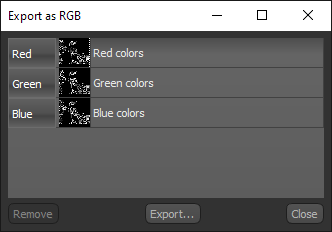
You can drag channels up and down to match them to a specific output in the Export as RGB dialog, as well as replace channels as required.
How to Export Images as RGB
- Select the required red-green-blue channels in the Data Properties and Settings panel, right-click, and then choose Export > As RGB in the pop-up menu.
The Export as RGB dialog appears.
- Do the following if you need to reorder the selected channels:
- Drag the channel that you need to move to a new location, as shown below.
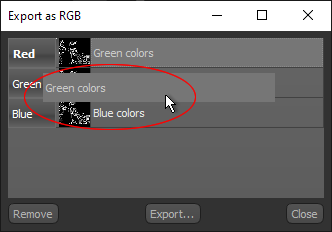
- Drag the channel that you need to move to a new location, as shown below.
- Do the following if you need to replace a channel with another one:
- Select the channel that you need to remove.
- Click the Remove button.
- Drag the replacement channel into the dialog from the Data Properties and Settings panel, as shown below.
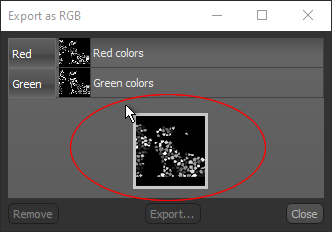
- Click the Export button.
- Select a destination folder and file name, as well as a file format, in the Save As dialog.
- Click the Save button.
